

Close Menu
    Facebook X (Twitter) Instagram
    Facebook X (Twitter) Instagram
    Game Geek Fusion
    Login
    • Reviews
      8.5

      Mount & Blade 2: Bannerlord – Is it Worth Buying War Sails DLC?

      27 November 2025
      8.0

      House Of Legacy Review

      16 May 2025

      Soul Covenant Dev Diary Reveals That “Its True Appeal Lies Beyond The Action”

      17 July 2024
      10

      Miscrits Back Review: Finally Makes A Return

      17 July 2024
      9.0

      Dragon POW Review – A Complete Look

      1 June 2024
    • Guides

      Storage Hunters Open World: Complete Fishing Guide

      9 July 2026

      Build a Ring Farm: Complete Wizard Event Guide

      8 July 2026

      Evomon Codes (July 2026)

      8 July 2026

      Drain the Lake Scripts: Auto Pour, Auto Drain, Keyless (July 2026)

      8 July 2026

      Build a Ring Farm Scripts: Auto Farm, Dupe Seeds, Keyless (July 2026)

      8 July 2026
    • Listicles
    • Comics
    • Codes
    • News

      Borderlands 4 Officially Priced at $70 – Randy Pitchford’s Drama Was for Nothing

      16 June 2025

      Wuthering Waves Reveals New Five-Star Character for 1.3 Update

      4 August 2024

      Minecraft Community Debates Overdue Visual Updates for Iconic Mobs

      4 August 2024

      Elden Ring Update Introduces Major Unannounced Nerf

      4 August 2024

      US DOJ Takes Legal Action Against TikTok

      4 August 2024
    Game Geek Fusion
    Home»Call of Duty: Mobile
    Call of Duty: Mobile

    How To Play Call Of Duty Mobile On PC

    By Shahvaiz Ahmad4 December 20244 Mins Read
    Facebook Twitter Pinterest LinkedIn Tumblr Email
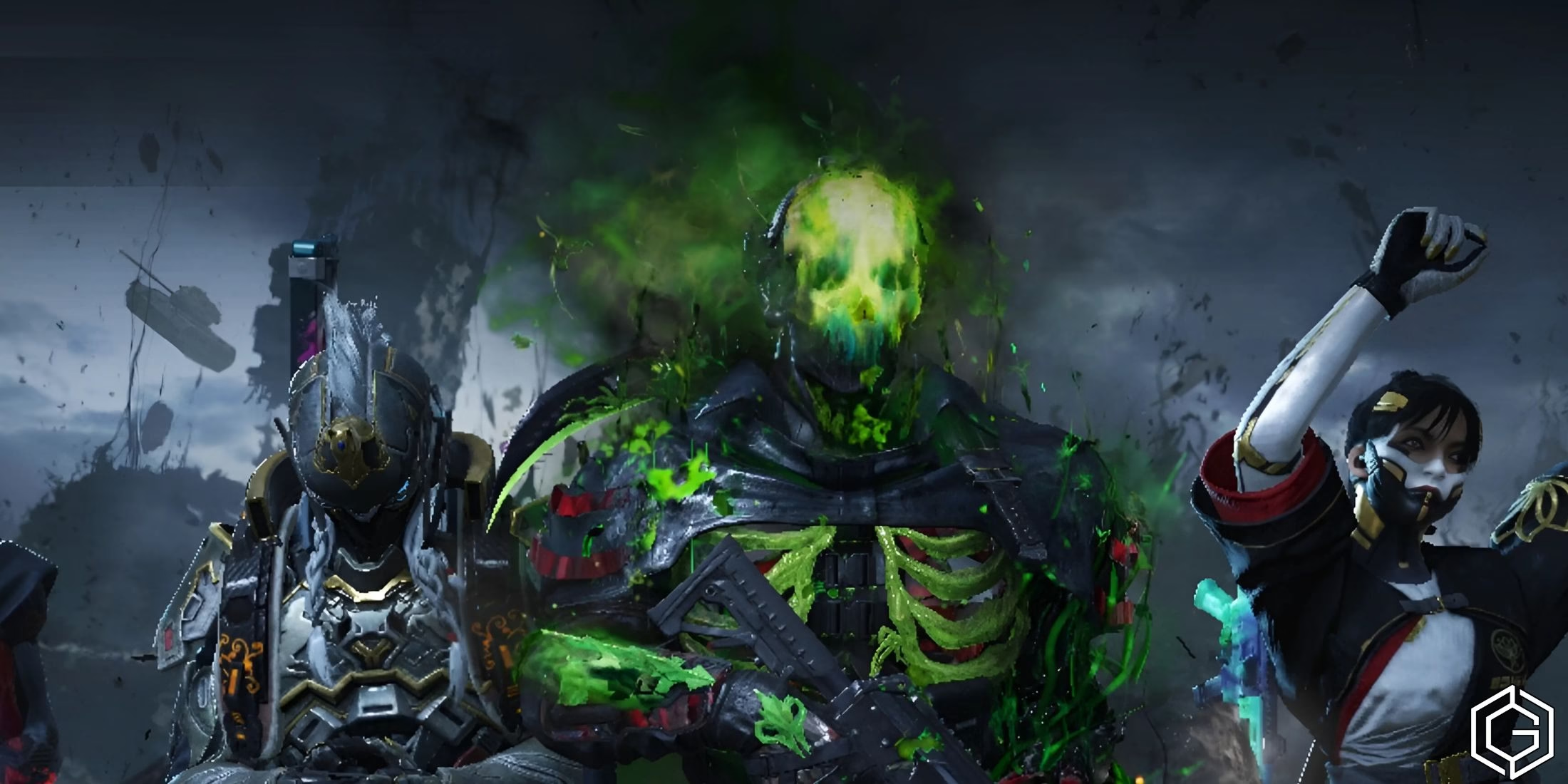
    Updated guide on how to play CODM on PC.
    Screenshot by Game Geek Fusion
    Share
    Facebook Twitter LinkedIn Reddit WhatsApp
    Click Here to Add Game Geek Fusion as a Trusted Source!
    Add as preferred source on Google
    Quick Links ▼

      Call of Duty Mobile (CODM) is a popular battle royale with both first-person as well as third-person shooter experiences for mobile devices as well as on PC. For players who choose to play CODM on a PC, they get a bigger screen and a keyboard for better control and an immersive experience.  

      RELATED
      Every Season In Call Of Duty: Mobile (CODM)
      Every Season In Call Of Duty: Mobile (CODM)

      But, if you’re wondering how to play Call of Duty Mobile on PC, we’ve got the answer for you. You can play CODM on your PC by installing emulators, some of the popular options including Game Loop, BlueStacks, and more. Not only are these the official emulators for CODM, but they are also safe and reliable choices.  In this step-by-step guide, we will walk you through the easiest method to play CODM on a PC.

      Step-by-Step Guide To Play CODM On PC

      Here’s a complete step-by-step guide to playing Call of Duty Mobile on most of the popular emulators available on PC.

      1. Using Game Loop
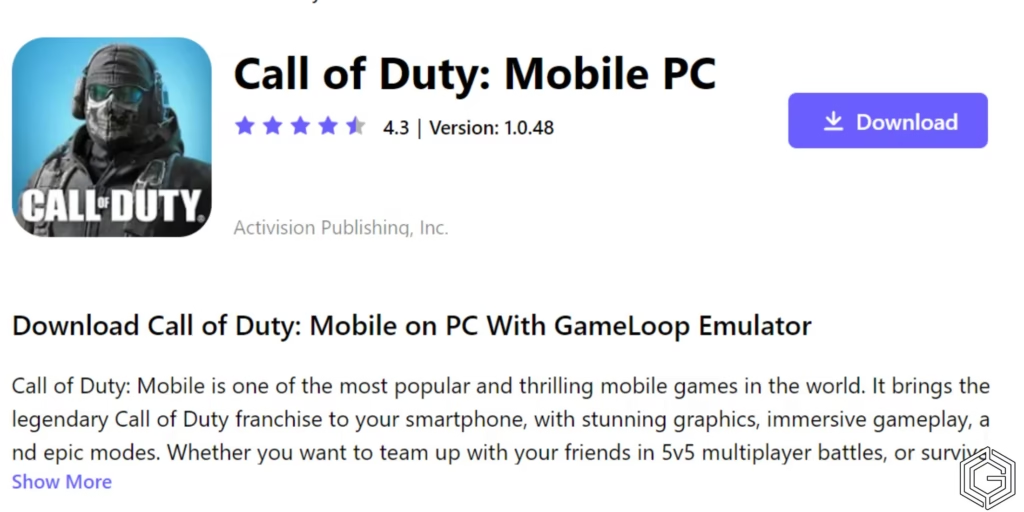
      Using Game Loop to play CODM

      Game Loop is a program that helps you to run mobile games on your computer.  Here’s how you can use it to play CODM on a PC.

      1. Open your internet browser (like Chrome browser) and search for “Game loop download”.
      2. Click on the official website and select the Download button. The downloading process is very quick and takes only a few minutes. 
      3. After completion of the downloading process, find it in your Downloads folder. Double-click to start installing it.  
      4. Once you double-click the file, an installation window will appear. Click on the download button, the downloading process will take a few minutes.  
      5. After installation, open the Game Loop program. In the Game loop, there is a search bar. Type Call of Duty Mobile and press Enter.  
      6. You will see the CODM game listed there. Click on the Install button next to it.  

      The download will take a few minutes, it also depends on your internet speed. Once CODM is installed, you need to set up the controls to play with your keyboard and mouse.

      The Game Loop has pre-set controls for CODM, which means it has already chosen which keys to use. You can check these controls by clicking the Keyboard icon in the Game Loop window while CODM opens.

      2. Using BlueStacks Or LD Player
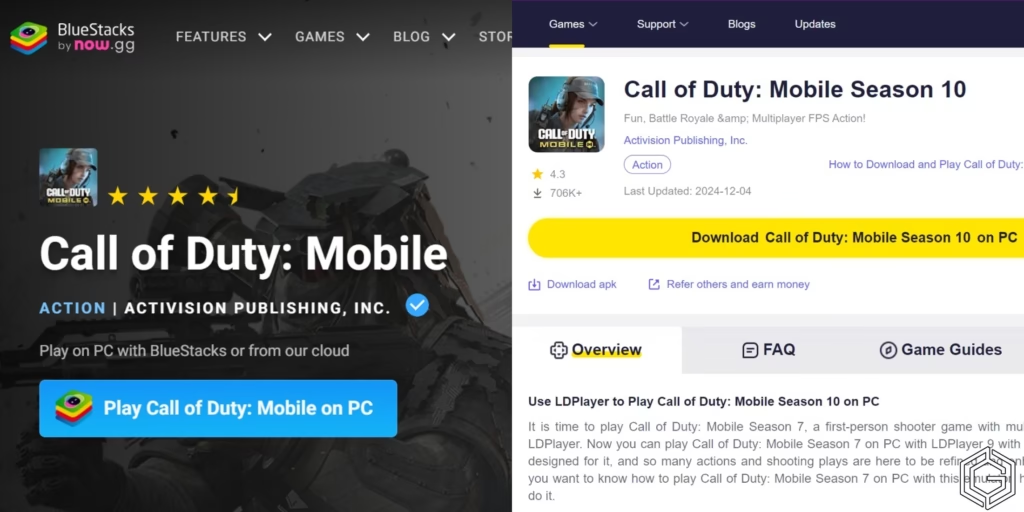
      Using Bluestacks and LDplayer to play CODM on PC

      BlueStacks and LDPlayer are popular emulators that allow you to run mobile games, like Call of Duty: Mobile (CODM), on your computer. Here’s a step-by-step guide:

      1. Download the Emulator
        • Open your web browser (e.g., Chrome) and search for “BlueStacks download” or “LDPlayer download.”
        • Visit the official website of the chosen emulator and click the Download button. The process typically takes only a few minutes.
      2. Install the Emulator
        • Once the download is complete, locate the installation file in your Downloads folder.
        • Double-click the file to start the installation process. Follow the on-screen prompts, and the emulator will be installed in a few minutes.
      3. Set Up the Emulator
        • Open BlueStacks or LDPlayer after installation. The emulator may prompt you to sign in with a Google account to access the Play Store. Use an existing account or create a new one.
      4. Search for CODM
        • In the emulator interface, locate the Search Bar (usually at the top or in the Play Store section).
        • Type Call of Duty: Mobile and press Enter.
      5. Download and Install CODM
        • When the game appears in the search results, click the Install button next to it.
        • The emulator will handle the rest, downloading and installing the game automatically.

      Once the installation is complete, you can launch CODM directly from the emulator’s home screen and enjoy gaming on your PC with optimized controls.

      How To Start Playing CODM on PC

      Using a Mythic Gun in Call of Duty Mobile

      Now that everything is set up, you’re ready to jump into the action!

      • Open the My Games section in the emulator (GameLoop, BlueStacks, or LDPlayer).
      • Locate Call of Duty: Mobile and click the Start button to launch the game.
      • Log in with your CODM account or create a new one if you don’t have an account yet.
      • Once logged in, start playing just like you would on your mobile device!

      Tips for an Enhanced CODM Experience on PC

      1. Practice Keyboard and Mouse Controls
        • Playing on a computer feels different from a mobile. So, you should spend some time in training mode to get familiar with the controls for better performance.
      2. Adjust Game Settings
        • Go to the CODM’s settings and tweak the graphics quality and sensitivity to match your system’s capabilities for smoother gameplay. Here’s a guide on the best settings in CODM to help you out.
      3. Use Headphones
        • For an immersive experience and better sound cues, like enemy footsteps, you should try to use good-quality headphones.
      Call of Duty Mobile Logo
      Call of Duty: Mobile

      Battle Royale, First-person Shooter

      Release Date: October 1, 2019
      Platforms: Android, iOS
      Developer: TiMi Studio Group
      Publisher: Activision
      Game Geek Fusion Logo
      Call of Duty: Mobile
      Shahvaiz Ahmad

        Shahvaiz Ahmad, Video Game Guide Writer at Game Geek Fusion who loves playing and talking about games. He enjoys exploring open worlds, solving puzzles, and sharing simple tips to help others to enjoy their favorite games.

        Related Posts

        Storage Hunters Open World: Complete Fishing Guide

        9 July 2026

        Build a Ring Farm: Complete Wizard Event Guide

        8 July 2026
        Add A Comment

        Comments are closed.

        Latest Posts

        Storage Hunters Open World: Complete Fishing Guide

        9 July 2026

        Build a Ring Farm: Complete Wizard Event Guide

        8 July 2026

        Evomon Codes (July 2026)

        8 July 2026

        Drain the Lake Scripts: Auto Pour, Auto Drain, Keyless (July 2026)

        8 July 2026
        Follow Us
        • Facebook
        • Twitter
        SUPPORT US – IT’S FREE

        Help GameGeekFusion reach more readers

        Set us as your preferred Google news source — takes one click, costs nothing.

        Set GameGeek Fusion as Google Preferred Source

        Your preferred sources appear more often in Google News & Discover

        Game Geek Fusion
        Facebook X (Twitter) Instagram YouTube RSS
        • Disclaimer
        • Terms of Service
        • About Us
        • Contact Us
        • Careers
        • Privacy and Cookie Policy

        Editorial Policy | Ethics Policy | Verification & Fact-Checking Policy | Diversity & Corrections Policy | Advertising & Affiliate Linking Policy

        All rights reserved. Copyright © 2026 GameGeekFusion.

        Type above and press Enter to search. Press Esc to cancel.

        Add as a preferred source on Google
        Add as preferred source on Google
        Ad Blocker Enabled!
        Ad Blocker Enabled!
        Our website is made possible by displaying online advertisements to our visitors. Please comply by disabling your Ad Blocker or support us directly.

        Sign In or Register

        Welcome Back!

        Login to your account below.

        Lost password?

        Loading Comments...

        You must be logged in to post a comment.